Most debt payoff templates online give you a color-coded list and stop there. This workbook does more. It tracks $32,350 across five debts, rolls an extra $250 forward each time a balance hits zero, and lays out the real cost of choosing quick wins over lower interest—all in one local file you own. I ran the same debt mix through our debt payoff calculator homepage starting in April 2026 to verify the numbers.
The real advantage is control. You can open the file, inspect every formula, and change one input to see how the entire schedule moves. And the input that matters most is APR—the yearly interest rate that determines how much each extra month of carrying a balance actually costs you (CFPB).
What A Good Excel Debt Payoff Spreadsheet Should Show
For this sample workbook, the balances are a $650 medical payment plan at 0.00%, a $6,100 Mastercard at 22.99%, an $8,200 Visa card at 27.99%, a $7,900 personal loan at 12.90%, and a $9,500 auto loan at 6.90%. Minimum payments add up to $957. The household can reliably add $250 each month, so the planned monthly outlay is $1,207.
With those inputs locked in, the workbook can produce a real answer. On the avalanche tab, the workbook reaches a debt-free month of January 2029, takes 34 months, and produces $7,732.38 in interest. Total paid comes to $40,082.38. Those numbers are worth more than a generic template because they are tied to one concrete payment stream and one specific debt mix.
The other thing a serious spreadsheet needs is a clear distinction between inputs and results. A good file keeps balances, APRs, and minimums on one sheet, then lets formulas push those changes through a schedule and dashboard automatically. For a browser-based version of the same structure, see our Google Sheets debt payoff spreadsheet.
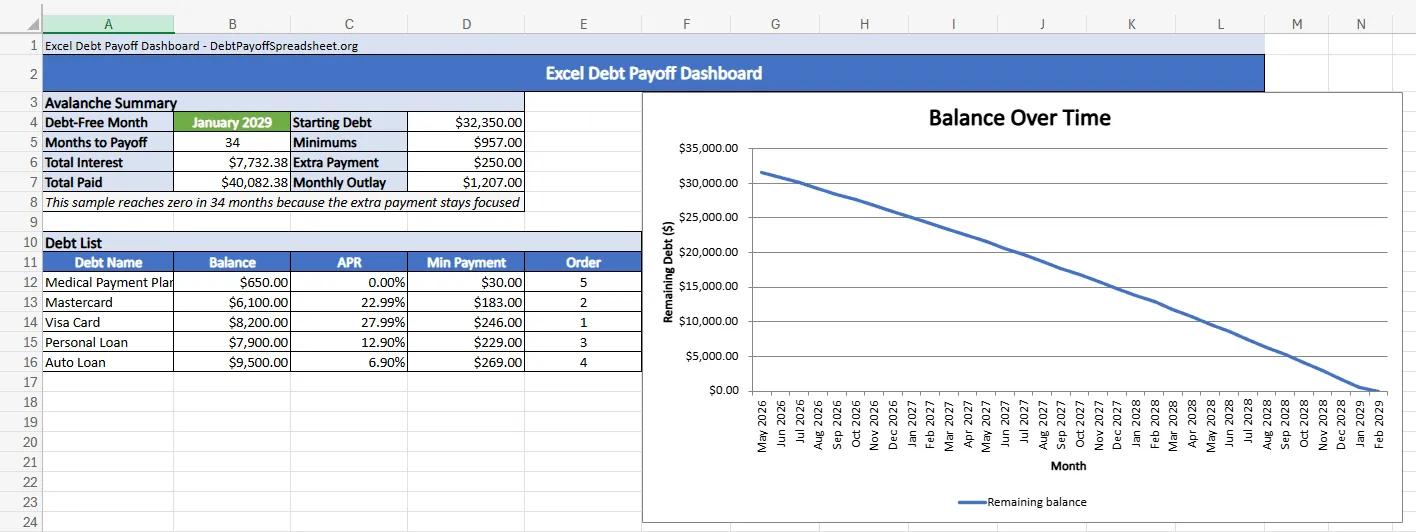
One more test matters here. That payment warning box on your credit card statement—the one showing how long payoff takes at the minimum—makes the same point this workbook makes: paying more each month cuts interest and shortens the timeline (CFPB). Your extra-payment cell is not cosmetic. It is the part of the workbook that determines whether the plan gets shorter or just looks tidy.
The Formulas That Keep The Workbook Honest
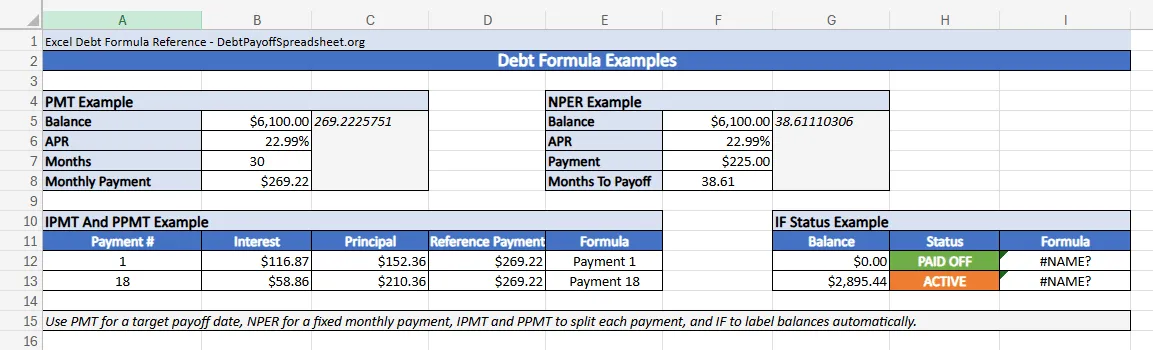
A debt payoff spreadsheet in Excel stops being useful the moment it depends on hand-typed math. The five formulas that matter most are PMT, NPER, IPMT, PPMT, and IF. They answer different questions, and each one keeps a different section of the workbook from drifting out of sync.
In the formula reference file, the sample card is the $6,100 Mastercard at 22.99% APR. PMT shows that paying it off in exactly 30 months requires $269.22 per month. NPER answers the reverse question: if the payment is only $225, payoff stretches to 38.61 months. IPMT and PPMT split the monthly payment correctly, which is how a schedule can show that payment 1 sends $116.87 to interest and $152.36 to principal, while payment 18 sends $58.86 to interest and $210.36 to principal.
This is also the line between a download that helps and a template that wastes time. If the formulas are solid, you can change one input and trust the rest of the workbook. If they are not, the file becomes a manual calculator with prettier borders. Readers who prefer building from scratch should start with our how to create a debt payoff spreadsheet guide instead.
Why Separate Snowball And Avalanche Tabs Matter
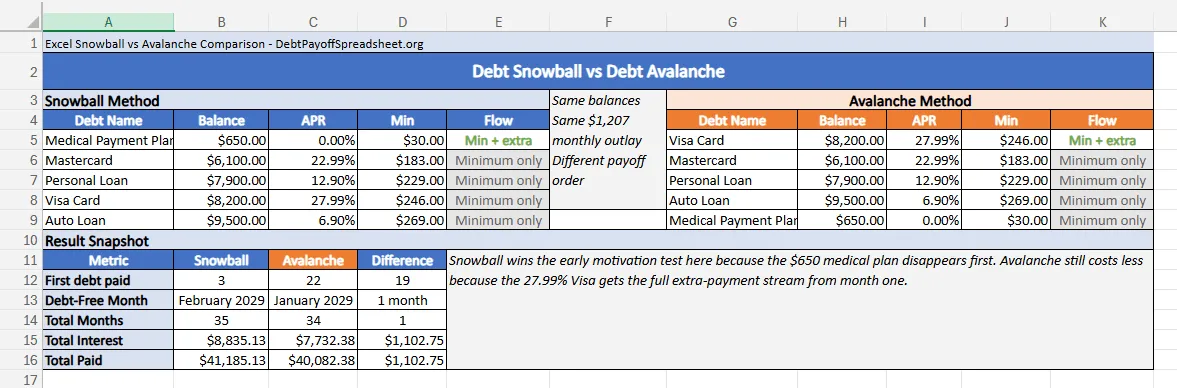
Excel becomes more valuable when it shows two valid answers instead of pretending there is only one. On this exact debt stack, snowball clears the $650 medical payment plan in 3 months. Avalanche does not eliminate a full account until month 22, because the 27.99% Visa balance is large enough to hold the extra-payment stream for a long time.
That delay is the real argument for snowball. Some readers need an early account closure to keep momentum. Excel is useful here because it forces you to see the price of that choice. In this sample, snowball reaches debt-free in February 2029 after 35 months and produces $8,835.13 in interest. Avalanche finishes in January 2029 after 34 months and keeps interest to $7,732.38. The spreadsheet makes the tradeoff plain: one faster emotional win, or $1,102.75 less interest with one month less in debt.
If you are still choosing between methods rather than between spreadsheet tools, the broader debt payoff strategies guide gives the decision rules behind those numbers. If most of your balances are cards rather than installment loans, the credit card debt payoff guide helps you think through issuer behavior, promotional rates, and statement changes that can make a static plan stale faster than you expect.
What Excel Cannot Do For You
An Excel debt payoff spreadsheet works best when the rules stay stable long enough for the formulas to matter. Deferred-interest promotions are a common failure point. The CFPB warns that minimum payments usually will not pay that balance off before the promotional window closes, which means a workbook that treats the balance like an ordinary low-rate account can give false comfort (CFPB).
The same caution applies when you cannot cover the minimums at all. A spreadsheet can show the gap, but it cannot negotiate a hardship plan. The CFPB’s guidance is to act right away and call the card company if you believe you cannot make the minimum payment, rather than waiting for the account to slide further behind (CFPB). In that situation, the workbook is still useful, but only as a diagnosis tool.
Once those immediate fires are out, Excel becomes the strongest tool in the stack. It gives you an offline record, a printable backup, and formulas you can actually read and audit. But it needs to stay alive. Update it after every statement cycle—especially when a rate changes or a required minimum shifts. A stale workbook is just decoration.
Excel Debt Payoff Spreadsheet FAQ
Is there a free debt payoff worksheet Excel file?
Yes. We have a free debt payoff worksheet on our homepage for general use, and the Excel files on this page are scenario-specific examples for dashboard tracking, formula reference, and snowball-versus-avalanche comparisons. If you want one main workbook to customize, start with the homepage spreadsheet.
Can I use a debt payoff calculator Excel workbook instead of an app?
Yes, if the workbook has a clear input area and live formulas behind the summary. Excel is a good fit when you want an offline file you control, a printable backup, and the ability to inspect or change the formulas yourself.
What should a Microsoft Excel debt payoff spreadsheet include?
At minimum, it needs one row per debt, APR and minimum-payment fields, one extra-payment input, and a payoff schedule or summary tab. A stronger workbook also compares snowball and avalanche so you can see what an early payoff win costs or saves before you commit.
Is an Excel debt payoff template enough on its own?
It is enough when your balances, APRs, and minimum payments are stable and you are consistently following the plan. It is not enough when you are missing minimum payments, dealing with deferred-interest promotions, or trying to solve a hardship problem that needs a lender conversation.